Redeeming and Activating Your Software
Get Your Redemption Code
-
Locate Your License Serial Number and Redemption Code:
-
You may have received it in an email or printed on a physical card similar to the examples shown here.
-
If a support engineer installs the software, you can request a copy from them.
-
-
Pre-Register Your Email:
You will need to register before redeeming your license activation.
-
Existing Users: If you already have a Licensed User account, you can sign in and proceed directly to Step 3.
-
Returned Users: If your organization’s domain is already registered, common for organizations that have purchased GC Image in the past, you may go straight to the redemption steps without any additional account setup.
-
Other Users: If you are new to GC Image, email support@gcimage.com with your license serial number and redemption code.
Alternatively, if a support engineer installs the software:
-
They might be able to pre-register the work or university email address associated with your purchase. Ask them if they can handle this step before installation.
-
If the software is already installed, they may activate a limited trial before you complete registration.
-
-
Follow the redemption instructions below.
Example 1 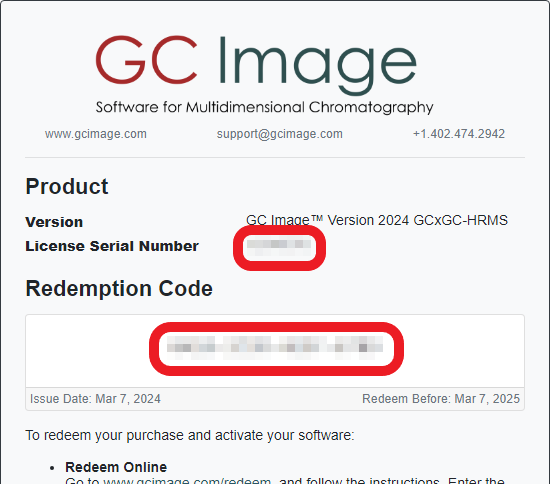 Example 2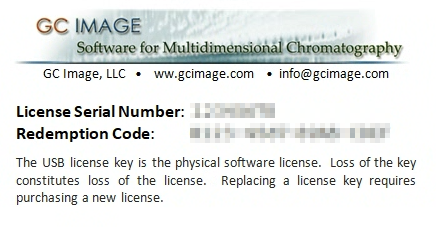
Redeem Your Purchase Online
-
Go to www.gcimage.com/redeem
-
Enter the work or university email address associated with your purchase and click Continue.
- You will receive a one-time confirmation code via email. Enter the code and click Continue.
-
Enter your license serial number and redemption code.
Note: If your email has not been pre-registered as a Licensed User, you will be asked to provide additional contact information.
-
Check the confirmation checkbox and click Submit.
Here is what happens next:
-
Pre-Registered Users:
-
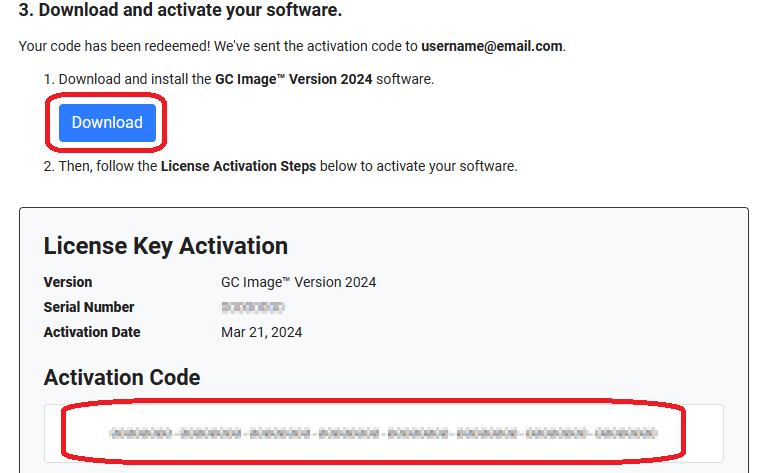
You will immediately receive a download link and your activation code.
-
Download the software using the Download button, and save your activation code (You will need it later during installation).
-
-
Other Users:
-
Your redemption request will be reviewed (typically within one business day).
-
Once approved, you will receive an email containing your activation code and installation instructions.
-
Step 1 - 2 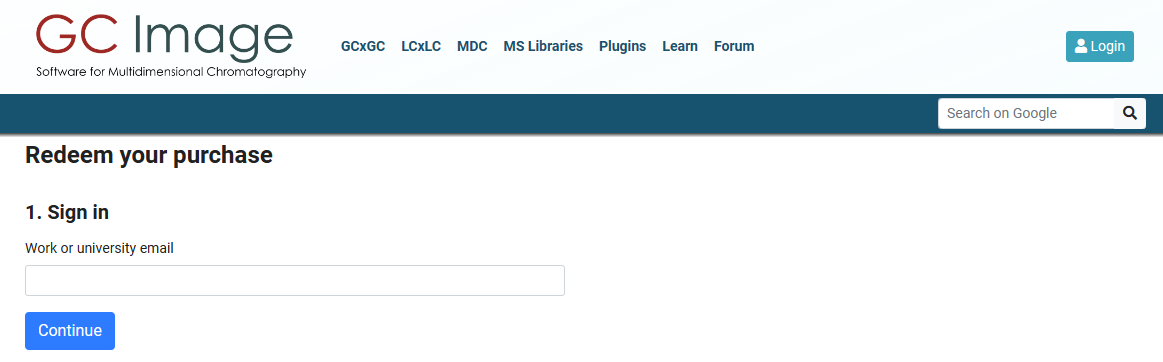 Step 3 - 4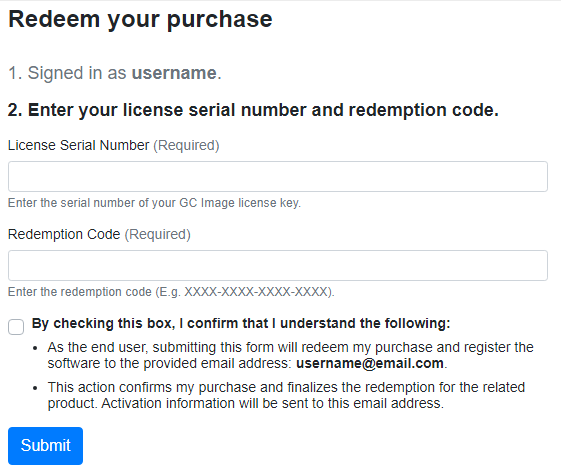
Install Your Software
-
Run the downloaded installer executable file.
-
Proceed through the install process following the steps provided by the installer.
-
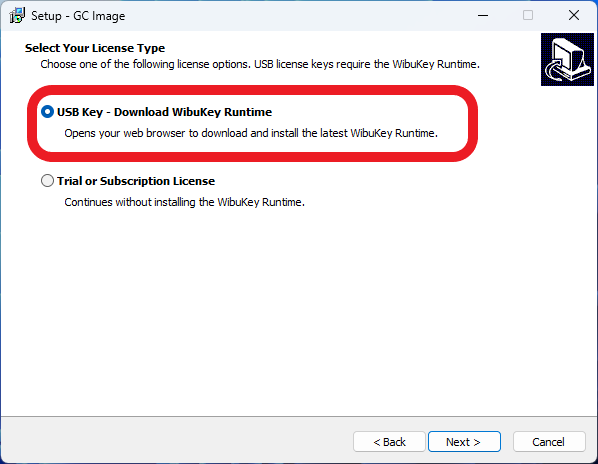
During the installation process, select the USB Key - Download the Wibukey runtime installer option. This will open our website with instructions to install the Wibu-Key software, which is required for our USB key license.
-
Once installed, launch the software from the desktop or start menu icon.
Activate Your Software
-
From the License Check dialog, select I have a new USB key or a key for an older version and want to activate it for this version. Plug in the USB key that you want to activate and then click OK.
-
Enter your activation code into the Activation Code field and click Activate.
-
Accept the License Agreement to proceed.

Quick Start
Next, visit the Quick Start page to get started with using the software.