GC IMAGE - GC Image GCxGC Edition - User Guide 2026R1
New Features and Improvements in Version 2026
GC Image GCxGC Edition 2026 has many new features and improvements. See
the GC Image GCxGC Edition User Guide for full
documentation.
What's New in Version 2026 Release 1 (July 2026)
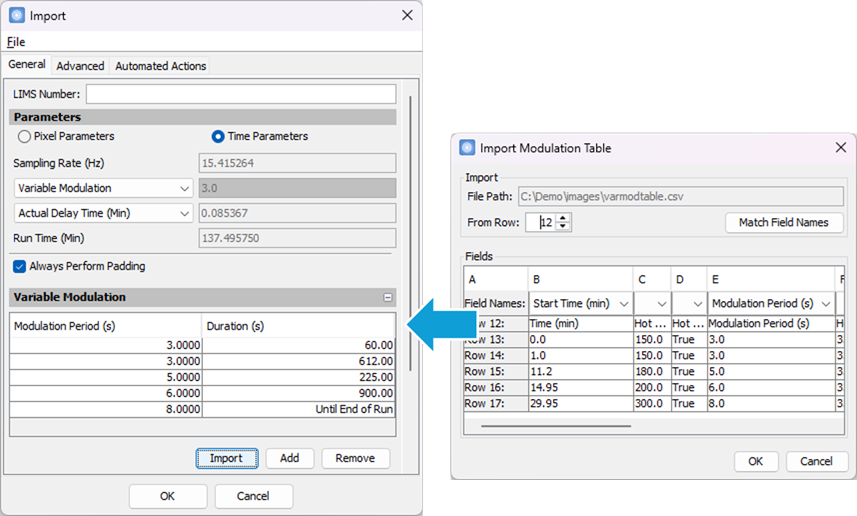
Version 2026R1 adds support for extracting the variable modulation table
from a CSV or Excel file during data import. The enhanced import
function can generate the table by parsing Start Time or
Duration columns together with a Modulation Period
column, and performing all required time-unit conversions. This
improvement allows modulation periods produced by other
software to be brought in without manual re-entry, greatly
streamlining setup for variable modulation workflows.
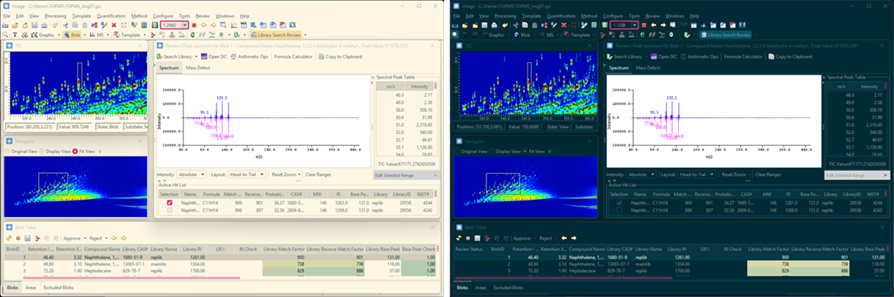
Version 2026R1 introduces support for the latest NIST 2026 Mass
Spectral Library and Search software, along with
improvements that make library search
operations with NIST work more reliably and smoothly.
- NIST26 Demo Support: The software now supports
NIST26 demonstration versions in addition to the full NIST26
versions.
- More Reliable Spectrum Retrieval: When
retrieving spectra for identified NIST compounds, the
software now checks both main and replicate
libraries. This ensures spectra can still be found even when
compound entries have moved between these libraries across
NIST versions.
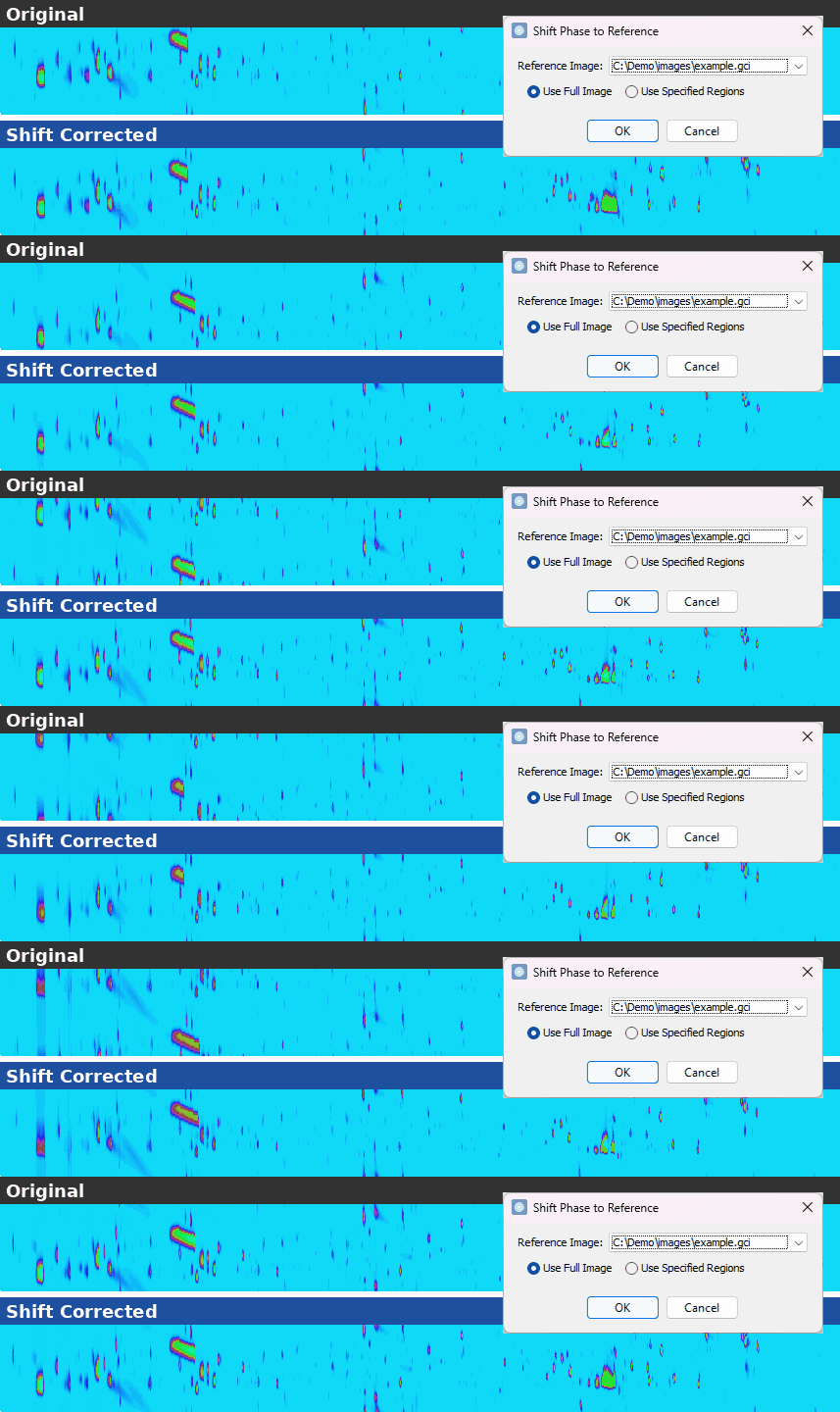
Version 2026R1 introduces a new Processing >
Shift Phase to Reference action that uses computer vision to
automatically determine the phase shift needed to align the
image with a reference image. This eliminates the repetitive
manual adjustments sometimes required when aligning large sets
of images.
- Full Image or Specified Regions: Match against
the entire reference image, or restrict the comparison to
regions defined by retention-time ranges or named graphical
regions.
- Guided Comparison: If a reliable shift cannot be
determined automatically, the software offers to compare the
image against the reference.
- Automated Workflows: The operation is
available as a method
command that can be included in automated workflows.
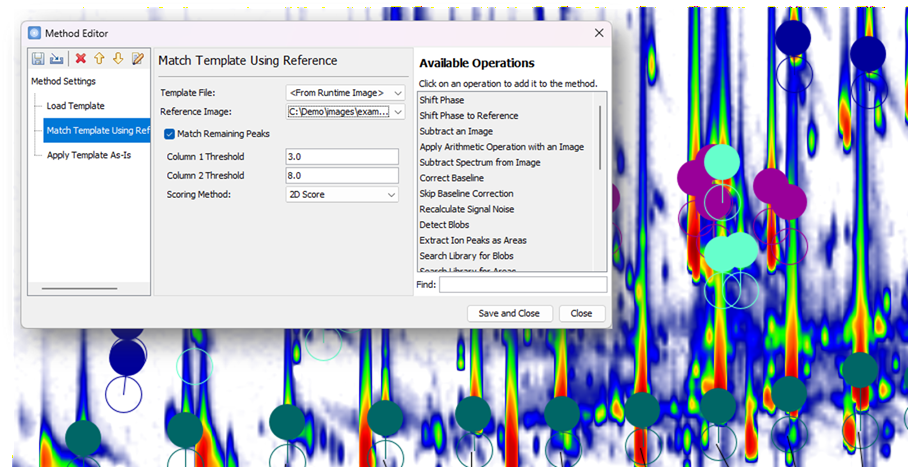
Version 2026R1 introduces a new computer-vision-based peak
matching algorithm that aligns template peaks with the current
chromatogram based on peak patterns in a reference image. This
provides more reliable matching in chromatograms affected by
significant retention time drift or complex matrices, reducing
the manual effort typically required.
- Interactive Match Support: A Match
Using Reference action is now available in the Interactive
Match and Transform dialog. This action matches template
peaks to the current chromatogram using a selected reference
image.
- Automated Method Support: A new Match
Template Using Reference method
command is now available, including an option to match
remaining peaks using guidance from the initial
reference-based match, for automated workflows.
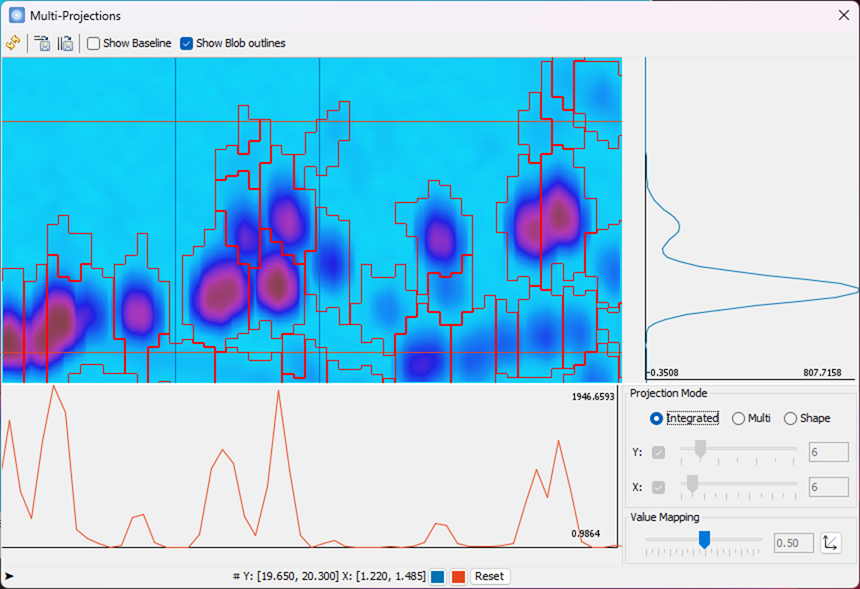
Version 2026R1 now includes a reworked Multi-Projections
view that is more interactive and easier to use.
- Non-Blocking View: Like the 1D view,
Multi-Projections now stays open while work continues in the
Image
View. It follows the active image and updates
automatically as that linked image view is zoomed or
navigated.
- Refined Blob Outline Display: Blob outlines now
use a thin, precise stroke for improved clarity.
- Improved Status Display: The status bar now
shows the center location or selection range of the
projection lines for clearer feedback.
- Updated Toolbar: A new toolbar has the refresh
button, save controls, and display settings for easy access.
- Improved Saving: Saving a projection now uses
the current viewport region by default, with options to save
the full image range or to include the axis values.
 |
Version 2026R1 introduces new Solarized light and dark
themes, replacing the older Nimbus theme and providing a
cleaner, more comfortable visual experience, especially in
night-time or low-light environments. Themes can be selected
from the System - Look and Feel setting through Configure >
Settings.
- Light and Dark Themes: Choose between Solarized
light and dark themes to suit different working environments.
- Consistent Appearance: Controls throughout the
software, including the color selectors, property dialogs,
image axes, tables, and color legends, were updated to
display correctly with the selected theme. Additional
refinements will be released in future updates.
Version 2026R1 has other improved operations, including:
- Internal Standard Name Validation: A warning now
appears when an internal standard (ISTD) quantifier
name is empty or collides with the compound name of the
owner blob or area, helping prevent naming issues before
building a calibration table.
- Import Steps from Another Method: A new Import button
in the Method Editor tool bar
imports all, or only the selected, operation steps from an existing
method, allowing complex steps to be reused across methods.
- Apply Template As-Is Command: A new Apply Template
As-Is method command applies the template without
modification and can be combined with other
template matching commands to support more complex
workflows.
- Redesigned Incident Report Submission:
The Incident Report
submission has been updated with a new interface that allows
selecting from any available log file. Reports are now submitted
through an online webpage opened directly by the software.
Contents
Next: Introduction
GC Image™ GCxGC Edition User Guide ©
2001–2026 by GC Image, LLC, and the University of Nebraska.